Phase Settings
To enter settings, turn your phone to landscape position (90° left or right).
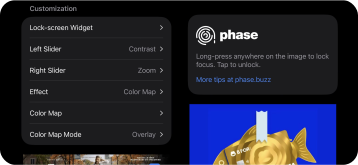
You shouldn't need this page — the settings are self-explanatory. Defaults are in bold.
Section: Customization
- Lock-screen Widget
add Phase to your Lock Screen - Left Slider
Contrast / Brightness / Saturation
Exposure / White Balance / Zoom - Right Slider
Zoom / Brightness / Contrast
Saturation / Exposure / White Balance - Effect
Black & White / Chrome / Process
Transfer / Color Map - Color Map (dedicated page)
paste any gradient image
with a simple long-press - Color Map Mode
Replace / Overlay / Hard Light
See "Gradient Maps" in Photoshop
Section: Default Settings
- Zoom — for both sliders
are set to other functions - Maximum Zoom — upper limit of zoom slider
- Black & White Contrast
- Computational Photography — Low / Medium / High
Determines how much processing to apply - Medium — Digital or Film
"Film" adds a small amount of grain to photos - Reset on Launch — On / Off
Resets sliders to default values after an hour of inactivity, so you can take photos without worrying about customized settings from a previous session
Section: Interface
- Show Grid — shows grid overlay while shooting
- Grid — Minimal / Thirds / SLR / Rounded / Alien
- Interface Brightness — brightness of main buttons (10-100%) default 50%
Section: Restore Defaults
Resets all settings and sliders to their initial values
Next: how to use Color Maps!